

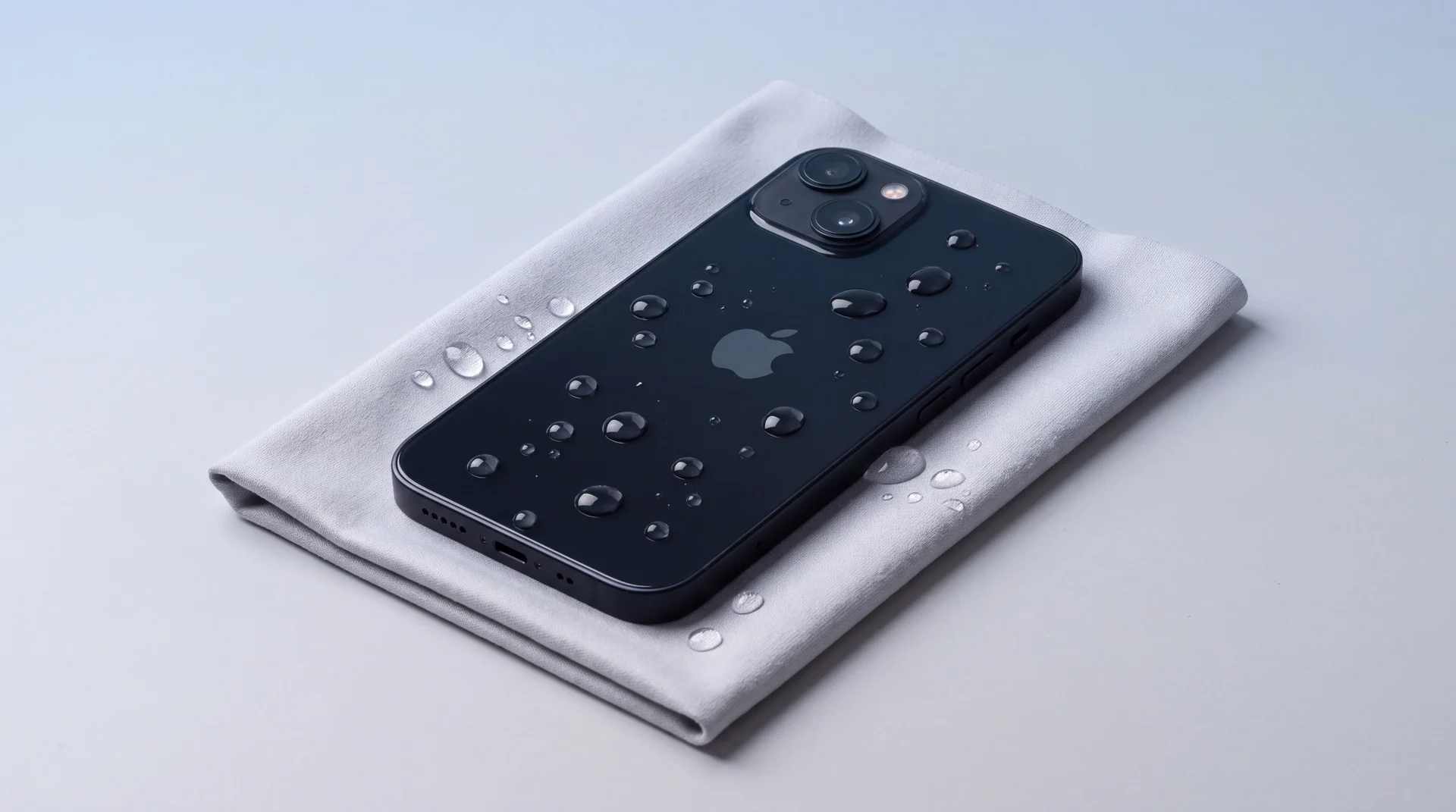
“Liquid detected in Lightning connector”, or “Liquid Detected in USB-C Connector” on an iPhone 15 or later, is an iPhone alert that switches off wired charging because the phone has found something conducting between the pins of its charging port, or on the cable plugged into it. Apple added it to the iPhone XS, XS Max and XR, and every iPhone since has it. The connector in the wording is the only difference: the cause, the fix and the advice below are the same for both.
The first time it appears, it is usually doing its job. Unplug, dry the phone with moving air, and it clears. But an alert that keeps coming back on a phone you know is dry is not a drying problem, and no amount of waiting fixes it. It is the cable or the port. When an iPhone reaches us in that state, it almost always needs a new charging port.
So the first question is not how to get rid of the message. It is whether the phone was actually wet.
It got wet
If your iPhone actually got wet
Rain, a spill, the sink, a pocket in the pool.
The alert is right and the fix is time. Unplug both ends, tap the port out, leave the phone in moving air and charge it wirelessly in the meantime. Give it at least five hours before a cable goes back in.
How to dry it properlyIt was never wet
If it says liquid detected but was never wet
Or it dried out days ago and the alert is still there.
Swap the cable before anything else. If a different Apple cable charges it, the old cable is the problem. If every Apple cable brings the alert back, the port is.
When the phone is dryWhich liquid alert is your iPhone showing?
There are four, and they are not interchangeable. Apple’s liquid-detection support page lists each one and what triggers it. The message people search for most, “Liquid detected in Lightning Connector”, is strictly the one for an accessory that does not charge the phone. Plug a Lightning iPhone into a charger and the wording you get is “Charging not available”.
| What the screen says | When you see it | Worth knowing |
|---|---|---|
| “Charging not available” | A Lightning iPhone plugged into a charger | The most common one on Lightning models. It appears the moment you plug in. |
| “Liquid detected in Lightning Connector” | A Lightning iPhone plugged into an accessory that does not charge it | A headphone adapter or a camera card reader, for example. This is the wording most people search for. |
| “Liquid Detected in USB-C Connector” | A USB-C iPhone on a USB-C to USB-A cable | Apple’s page tells you to disconnect the cable immediately. |
| “Liquid Detected” | A USB-C iPhone plugged into a USB-C accessory | The shortest of the four, and the easiest to dismiss without reading. |
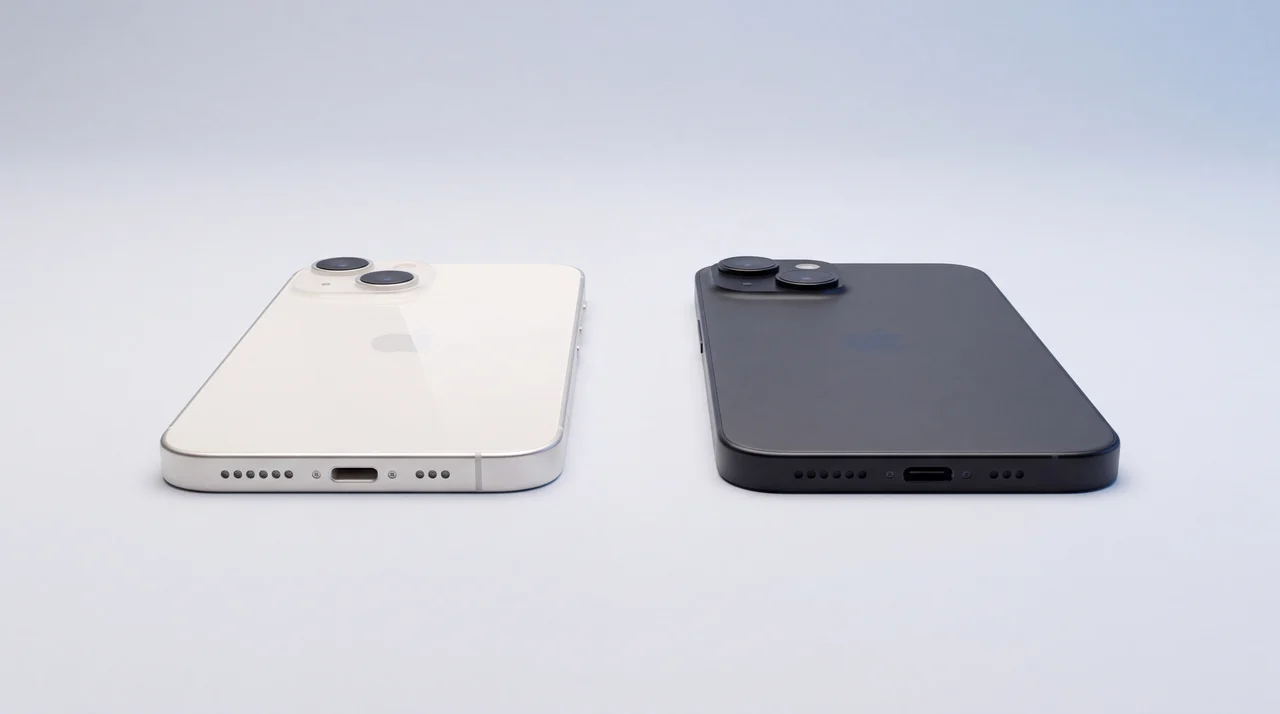
Which connector you have depends on the model. Apple’s identify-your-iPhone page lists a USB-C connector on every model from the iPhone 15 onwards, so the iPhone 14 and everything before it is Lightning. Some guides still put the iPhone 15 in the Lightning group, or suggest USB-C phones handle moisture differently. Apple’s own page lists the USB-C versions of the alert alongside the Lightning ones, with the same advice.
The practical difference between the four is small. Every one of them means the same thing: the cable stays out until the port and the cable are dry.
How does an iPhone know there is liquid in the port?
Apple does not publish how the detection works. iFixit’s troubleshooting page says it is “likely accomplished by changes in resistance”: the phone checks the electrical characteristics between the port’s pins, and if they look like something is bridging them, it refuses to charge through the cable.
That explains the part that confuses people. A resistance check cannot see water. It sees a path for current where there should not be one. Water makes that path. So can a wet or damaged cable end, which is why Apple’s page says the liquid may be “on the cable or accessory” and not in the phone at all. iFixit adds lint that gets packed into the port and compressed a little more every time a cable goes in, and a faulty port.
The alert tells you that something is conducting between the pins. It cannot tell you what.
The reason it switches charging off is corrosion. Apple’s page says that charging while the connector is wet can make the pins on the port or the cable “corrode and cause permanent damage or stop functioning”. Electronics researchers see the same thing on circuit boards: moisture sitting across two conductors under voltage starts electrochemical reactions that grow metal between them. A port that has been charged wet enough times is a port that stays faulty after it dries.
How long does it take for liquid detected to go away?
Anything from half an hour to a day, Lightning or USB-C, and Apple gives two numbers that seem to disagree. Its alert page says to try again after at least 30 minutes and that the port “may take up to 24 hours to dry fully”. Its water-resistance page, written for an iPhone that has actually been in water, says to “allow at least 5 hours before charging with a Lightning or USB-C cable”.
They fit together once you know which situation you are in. A damp cable end, or a drop of water in your iPhone’s charging port from a wet hand, can clear in half an hour, and the alert will tell you if it has not. A phone that went into the bath or the sea has water further in than the port, and five hours is the minimum before you push current through it. If you know it was submerged, wait the five hours even if the alert disappears sooner, and read what to do in the first hour after water damage as well.
How to clear a liquid detected alert
These are Apple’s steps, in order, and they are the same for a Lightning iPhone and a USB-C one.
- 1
Unplug both ends
Take the cable out of the phone and out of the plug or accessory. Apple is clear that nothing goes back in until the phone and the cable are completely dry.
- 2
Tap it out
Hold the iPhone with the port facing down and tap it gently against the palm of your hand. You are trying to let gravity take the loose drops, not shake the phone to bits.
- 3
Leave it somewhere dry with moving air
A table in a room with the window open is fine. Apple says a fan blowing cool air straight into the port may help. A radiator, a sunny dashboard or a hairdryer is not the same thing.
- 4
Try again after 30 minutes
If the alert comes straight back, there is still liquid in the port or under the pins of the cable. Leave it longer and keep trying. Apple says it can take up to 24 hours to dry fully.
- 5
Charge wirelessly while you wait
The alert only blocks the port. A Qi or MagSafe charger still works, as long as the back of the phone is dry before it goes on the pad.
If the phone got something other than clean water on it, such as squash, tea or seawater, Apple’s water-resistance page says to rinse the affected area with tap water first. Apple does not say why, but squash leaves sugar behind when the water evaporates and seawater leaves salt, and neither dries out of a port the way water does.
Should you put an iPhone in rice?
No. Apple says so in plain words on the same page as the alert. Rice is the most repeated bad advice for a wet phone, and the three fixes after it are not far behind. Apple’s page rules out all four.
A bag of rice
Apple’s own page says not to, because small particles of rice can get into the phone and damage it. Rice dust in a charging port is one more thing lying across the pins.
A hairdryer, radiator or oven
Apple says not to dry an iPhone with an external heat source. Moving air does the same job without cooking the rest of the phone.
Compressed air
Also on Apple’s list. A can of air is fine on a keyboard, but a charging port is not the place to try it.
A cotton bud, paper towel, pin or toothpick
Apple names cotton buds and paper towel specifically. The contacts inside the port are small and easily scratched or bent, and a damaged contact turns a drying problem into a port replacement.
Should you use Emergency Override?
Only if you have no other way to charge and you genuinely need the phone. Unplug the cable and plug it back in, and the iPhone offers to override the liquid detection and charge anyway. Apple describes it as something you “may need to” do in an emergency, straight after telling you that charging a wet connector can corrode the pins.
Apple does not say how much harm a single override does. What is clear is the direction of travel. The alert exists to stop current flowing through a wet port, and the override lets it flow. Once, to call a taxi home, is a trade-off you can make. Every morning for a month because the alert never goes away is a different thing: at that point you are charging through a port the phone has told you is faulty, and wearing it out a little more each day.
The better option is sitting on a lot of bedside tables already. Apple’s page says a wireless charger still works while the alert is showing, as long as the back of the phone is dry. Apple’s wireless charging page covers every iPhone from the iPhone 8 onwards, so a wireless charger keeps the phone going for as long as the port takes to dry.
Why does my iPhone say liquid detected when it is not wet?
Because the check is for conduction, not water, and a dry phone can still have something conducting in or at the port. Apple gives you the test to find out what, in two sentences near the bottom of its page. If you see the alert every time you connect one particular cable or accessory, that cable or accessory “may be damaged”. If you see it every time you connect an Apple cable, “you may need a service”.
That is the whole diagnosis, and it costs nothing to run. Borrow a genuine Apple cable that has been living on a desk rather than in a bag, and a plug you know works. Leave the phone to dry for the full day first so you know water is out of the picture.
- It charges on the borrowed cable. Your cable is the problem. It is not worth cleaning a cable that has been setting off a liquid alert, and a cheap replacement can bring problems of its own. We explain why in how a cheap cable can damage an iPhone’s charging chip.
- The alert comes back on the borrowed cable too. The problem is in the phone’s port, and that is the case Apple calls a service.
Two other causes are worth ruling out on the way. A restart costs nothing, and iFixit lists software faults among the causes. And look into the port with a torch. iPhones live in pockets and bags, and the fluff that collects in the port gets packed flatter every time a cable goes in. You may see a grey felt pad at the back of the port. Do not dig it out with a pin, for the reasons in the list above.
Some articles blame sweat or humidity. Samsung’s support page for Galaxy phones says high humidity can set off its equivalent warning. Apple says nothing either way about iPhones, so treat it as possible rather than established.
What we find when it will not clear
By the time an iPhone reaches us with this alert, it has usually had the day in a dry room and been tried on more than one cable. In that state it is almost always the charging port: the pins or the connector have been damaged, and the phone is right to refuse the cable. Drying it again will not bring it back.
We do not go straight to a replacement. The first step is to clean the port properly, with the right tools and a light, and test it again. In the shop that clean and test costs £24. If packed debris was the cause, that is the end of it. If the alert comes back on a clean port, the port is replaced.
What does it cost to fix an iPhone charging port?
With us, a Charging Port Repair runs from £66 to £126 depending on the model. Apple has no charging port repair. It treats a port fault as “other damage”, and these are its prices for that.
| Model | Connector | mendmyi Charging Port Repair | Apple “other damage” |
|---|---|---|---|
| iPhone 11 | Lightning | £66 | £369 |
| iPhone 13 | Lightning | £66 | £449 |
| iPhone 14 | Lightning | £76 | £589 |
| iPhone 15 | USB-C | £96 | £629 |
| iPhone 16 | USB-C | £111 | £639 |
| iPhone 17 | USB-C | £126 | £699 |
Apple figures: out-of-warranty other damage fees from Apple’s UK iPhone repair estimator, checked 1 October 2026, including VAT. Apple inspects the phone to set the final fee, and Apple Authorised Service Providers set their own prices. Our prices are read live from our repair pages.
If you take it to Apple, it is priced as other damage, and Apple’s warranty does not cover liquid damage. With AppleCare+, the excess for that repair is £79 under Apple’s published UK fees. More on why water damage sits outside the warranty in water-resistant is not waterproof.
Our diagnosis is free and commits you to nothing, so you find out whether it is the cable, debris or the port before you pay for any of them. Prices for your exact model are on our iPhone repair page. If the phone is old enough that a port repair feels like throwing good money after bad, it still has a value, and selling it to us is the other option.
The bottom line
If your iPhone got wet, the liquid alert is right and time is the fix. Unplug it, tap the port out, leave it in moving air, charge it on a wireless pad and keep the cable out for at least five hours. Keep rice, heat, compressed air and anything pointed away from it, and save Emergency Override for a real emergency.
If it was never wet, or it dried out days ago and the alert is still there, stop drying it. Try a different Apple cable. If that charges it, replace your cable. If it does not, the port is the problem, and it is cheaper to find that out now than after another month of overriding it.
Liquid detected on iPhone: your questions answered
How do you get water out of an iPhone charging port, Lightning or USB-C?
Unplug the cable from both ends, hold the iPhone with the port facing down and tap it gently against your hand, then leave it somewhere dry with moving air. Apple says a fan blowing cool air into the port may help. Do not use rice, heat, compressed air, a cotton bud or anything else pushed into the port. Try charging again after at least 30 minutes, and give it up to a day if the alert keeps returning. The steps are exactly the same on an iPhone 15 or later with a USB-C connector.
Why does my iPhone keep saying liquid detected when it is not wet?
Something is still conducting between the pins, and it is not always water or moisture. Apple says the cause can be liquid on the cable or accessory rather than the phone. If the alert only appears with one cable, that cable is the problem. If it appears with every Apple cable after the phone has had a full day to dry, Apple says the phone may need a service. In our workshop, an iPhone that gets to that point almost always needs a new charging port.
Can an iPhone show liquid detected by mistake?
It can show it when there is no water in the phone, because the check is for anything conducting between the pins rather than for water itself. Apple says the alert can come from liquid on the cable or accessory, and iFixit lists packed lint, software faults and a faulty port among the causes. A different Apple cable and a restart rule out the simple ones. If the alert follows every Apple cable on a phone that has had a full day to dry, the port is the likely cause.
How long until liquid detected goes away?
Apple’s alert page says to try again after at least 30 minutes and that the connector can take up to 24 hours to dry fully. Its separate guidance for an iPhone that has been in water is stricter: wait at least five hours before charging with a cable. If the phone was never wet and the alert is still there after a day with a different Apple cable, waiting longer is unlikely to change anything.
Can I override liquid detected, and what happens if I do?
Yes, in an emergency: unplug the cable and plug it back in, and the iPhone offers Emergency Override. The iPhone then charges through the cable in spite of the warning. Apple offers it for emergencies only, and warns that charging while the connector is wet can corrode the pins on the phone or the cable and cause permanent damage. If the phone genuinely got wet, use a wireless charger instead if you have one. If you override every day because the alert never clears, the port needs looking at.
Is it safe to ignore liquid detected on an iPhone?
Not while it is blocking the cable. The point of the alert is to stop current flowing through a wet port, because that is what corrodes the pins. Leave the cable out, dry the phone properly and charge wirelessly. If the alert keeps coming back on a phone you know is dry, it is telling you something about the port or the cable, and that is worth finding out before the phone stops charging altogether.
Alert still there on a dry phone?
Bring your iPhone in and we will check the port, clean it and test it before anything gets replaced. The diagnosis is free, and you get a quote before any work starts. Repairs come with a warranty of 12 months.