

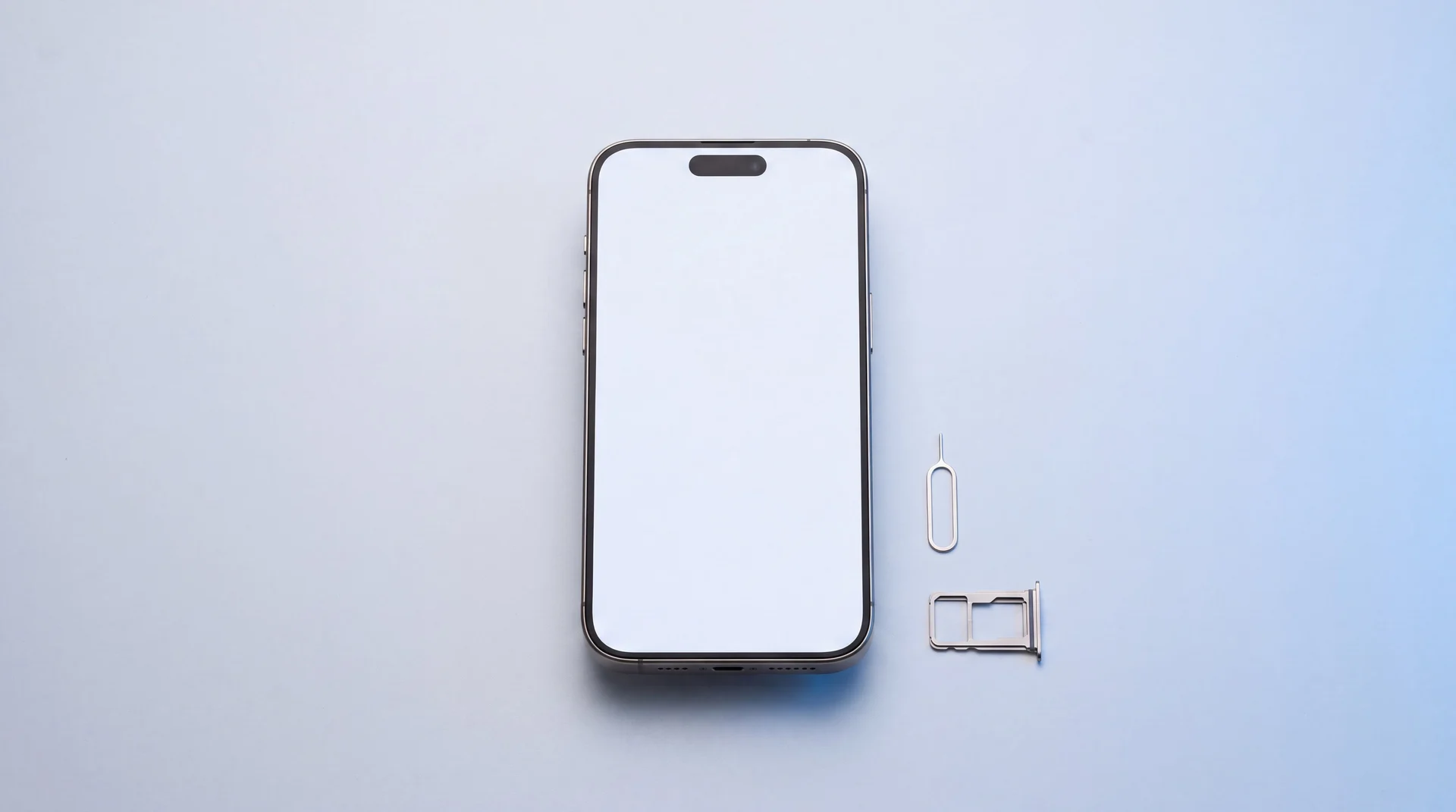
The short answer: back up first, then sign out of your account so the phone is not locked to you, then erase it. On iPhone that means turning Find My off; on Android it means removing your Google account; then run Erase All Content and Settings, or a factory reset, and take your SIM out to keep with you. Do those in that order and the buyer can set the phone up as their own straight away. It is exactly the same job whether you are selling privately or trading it in. Rather not fiddle with it? Sell or trade in with us and we wipe it securely for you.
Not sure selling is even the right call yet? Our guide to what to do with your old phone walks through repairing, selling, trading in and recycling side by side, then send you back here for the wipe.
The one mistake that locks the phone
If you remember nothing else, remember this. Both Apple and Google build in an anti-theft lock that stays switched on through a wipe unless you remove your account first. Apple calls it Activation Lock, Android calls it Factory Reset Protection. Erase the phone with your account still on it and it boots back up demanding your password, and the new owner is staring at a phone they cannot get past. That is the single most common reason a sale falls through, and it quietly drags down what the phone is worth.
The fix is simple and it is the same idea on both: take your account off the phone before you erase it. The steps below do exactly that, in the right order.
Wiping an iPhone, step by step
Four steps, ten minutes, no special software. Do them in this order so Activation Lock comes off cleanly.
- 1
Back it up first
Settings > your name > iCloud > iCloud Backup, or plug into a computer and back up there. If you are moving to a new phone, this same backup is what carries everything across, so do not skip it.
- 2
Sign out and turn off Find My
Settings > your name, scroll down and tap Sign Out, then enter your Apple Account password. This is the step that switches off Activation Lock. Miss it and the phone stays tied to you and the buyer cannot use it.
- 3
Erase all content and settings
Settings > General > Transfer or Reset iPhone > Erase All Content and Settings. The phone wipes itself back to a clean out-of-the-box state, ready for its new owner to set up as their own.
- 4
Take your SIM and eSIM
Pop out the physical SIM tray and keep it. If you use an eSIM, remove it or transfer it to your new phone so your number goes with you, not with the phone. Taking the SIM out does not wipe the phone and is no substitute for erasing it, a physical SIM only ever holds your number and maybe a few old contacts, never your photos, messages or apps.
Forgotten the passcode or your Apple Account password? We can still restore and erase the phone for you, but be straight with yourself first: you will need access to that Apple Account afterwards to switch off Activation Lock and reactivate it. There is no legitimate way round that lock, by design, so it is worth resetting your password at iforgot.apple.com before you sell. If the phone is already dead and your only option is to remove it from iCloud remotely, read why removing an iPhone from iCloud can leave it still locked first, because that route comes with a 30-day catch. And if the reason you are wiping is not a sale but a scam call or a phone that feels like someone else is on it, the erase is only one of the steps: see what to do if your phone is hacked for the order that matters.
Wiping a Samsung, Pixel or other Android
Menu names vary a little between Samsung, Google Pixel and other makes, but the order is always the same: account off first, then reset.
- 1
Back it up first
Settings > Google > Backup turns on Google One backup, and Google Photos keeps your pictures safe. On a Samsung, Settings > Accounts and backup also offers Samsung Cloud and Smart Switch for moving to a new phone.
- 2
Remove your Google account
Settings > Passwords & accounts (or Accounts) > your Google account > Remove account. This clears Factory Reset Protection so the buyer is not locked out after the reset. On a Galaxy, remove your Samsung account the same way.
- 3
Factory reset
Samsung: Settings > General management > Reset > Factory data reset. Pixel: Settings > System > Reset options > Erase all data (factory reset). Confirm, and the phone wipes itself clean.
- 4
Take your SIM and memory card
Remove the physical SIM, and the microSD card if your phone has one, before you hand it over. Anything stored on that card does not get touched by a factory reset.
Does a factory reset really erase everything?
For any modern phone, yes. iPhones have encrypted their storage for years, and Android phones have done the same by default for a long time now. When you erase the device it throws away the encryption key, which leaves whatever data was there scrambled and unreadable in practice. You do not need to overwrite the phone several times or run any special wiping app, the built-in erase is the proper way to do it.
The one exception is a really old Android handset, from around 2015 or earlier, that was never encrypted by default. On something that ancient a reset is less thorough, and frankly it is worth little, so it is a better candidate for recycling than reselling.
A quick sense check before it leaves your hands: the phone should boot to the language-select or hello screen, not to your home screen or a login asking for your password. If it asks for your account, the wipe did not take your account off, and you are back to the Activation Lock problem above.
Or let us wipe it for you
Not comfortable doing it yourself? When you sell or trade in with us, the wipe is part of the deal. Bring the phone in, we check it, securely erase your data, and pay you or put the value towards your next device.
Sell it
Tell us the model and condition for a quote, with the price locked for three days. Same-day payout in store, and we deal with the wiping and reselling.
Get a price for your phoneTrade it towards an upgrade
Put its value towards a professionally refurbished phone from our shop and pay less than buying outright, with a 12-month warranty on what you take home.
Browse refurbished phonesWe move your data across
Buy any phone from us and we set it up and move everything over from your old one, photos, messages, apps and accounts, then wipe the old phone for you.
See how it worksSelling an old iPad that will not power on? You cannot wipe a dead device the normal way. Our guide to an iPad that won't turn on or charge covers the checks worth trying before you assume it is beyond saving, or bring it to us and we can often still take it for parts.
One last thing: do not skip the backup
An erase is final. Once it is done, anything that was only on that phone and nowhere else is gone for good. So make sure your photos, messages and contacts are safely backed up or already on your new phone before you press the button. And once everything is safely on your new phone, erasing the old one does not touch the new one, they are separate devices with separate backups, so you can wipe the old handset with confidence. If a phone has already been wiped, or has died, with the only copy of precious photos still on it, that is a different job, and our data recovery service can often get them back.
Moving to a new iPhone rather than just getting rid of this one? Do that part first and check it properly before you wipe anything: our guide to transferring data from iPhone to iPhone covers the three routes and the things that do not come across on their own. Leave the old phone a week before you erase it.
The bottom line
Wiping a phone before you sell it is not complicated, but the order matters. Back it up, take your account off so the phone is not locked to you, then erase it, and you hand over a clean device the new owner can use right away. That is true whether you found the buyer yourself or you are passing it to a friend. And if any of that feels like a faff, that is what we are here for: bring it in, we will wipe it securely, pay you a fair price or put it towards your next phone, and move your data across for you. Either way, your old phone leaves your hands clean, unlocked and worth what it should be.
Wiping your phone: your questions answered
How do I wipe an iPhone before selling it?
Back up first to iCloud or a computer, then sign out of iCloud so Activation Lock is removed: Settings, tap your name, Sign Out. Then erase it: Settings, General, Transfer or Reset iPhone, Erase All Content and Settings. Remove the SIM and delete any eSIM. The phone is then clean and ready for its next owner.
How do I wipe an Android phone?
Back up your data, then remove your Google account under Settings, Accounts, so the phone is not locked to you by Factory Reset Protection. Then erase it: Settings, System, Reset, Erase all data (factory reset). The exact menu names vary slightly by manufacturer.
Why must I sign out of iCloud or my Google account first?
Because of Activation Lock on iPhone and Factory Reset Protection on Android. If you wipe the phone without signing out, it stays tied to your account and the new owner cannot set it up. Signing out first is the step people most often miss.
Does a factory reset really remove everything?
A factory reset erases your data and returns the phone to its out-of-the-box state. Modern iPhones and Android phones encrypt their storage, so a proper erase makes the old data unrecoverable. The key is to sign out of your accounts first so the phone is not still locked to you.
Will wiping remove the activation lock?
Only if you sign out of iCloud, or remove your Google account, before you erase. Erasing on its own does not remove Activation Lock if the phone is still signed in, so always sign out first.
Does removing the SIM card delete everything on the phone?
No. A physical SIM only holds your number and, at most, a few old contacts you once saved to it, never your photos, messages or apps. Taking it out protects your number and stops it going with the phone, but it does not wipe anything, so you still need to sign out and erase the phone properly. If you use an eSIM, delete or transfer it so your number moves with you.
Will erasing my old iPhone affect my new one?
No. Once your data is safely on the new phone, the two are completely separate devices with separate iCloud or Google backups, so erasing the old one does not remove anything from the new one. The only thing to get right is the order: make sure everything has moved across and you can see it on the new phone before you wipe the old one.
Can mendmyi wipe my phone for me?
Yes. Bring it in and we will securely wipe it and make sure it is properly signed out, so it is safe to sell or trade in. If you are selling it to us, we handle the wipe as part of the process.
When you trade in a phone, do they wipe it for you?
A reputable buyer or recycler will wipe it, and we wipe every phone we take in as part of the process. But never rely on that alone: always back up, sign out of your account and erase the phone yourself first. Until it is wiped your data and accounts are exposed, and an iPhone left signed in can bounce back to you for Activation Lock. Do it yourself and you hand over a clean, unlocked phone that is worth its full value.
Ready to sell or upgrade?
Get a fair price with a three-day price lock, secure data wiping included, and your data moved across if you are upgrading with us.