

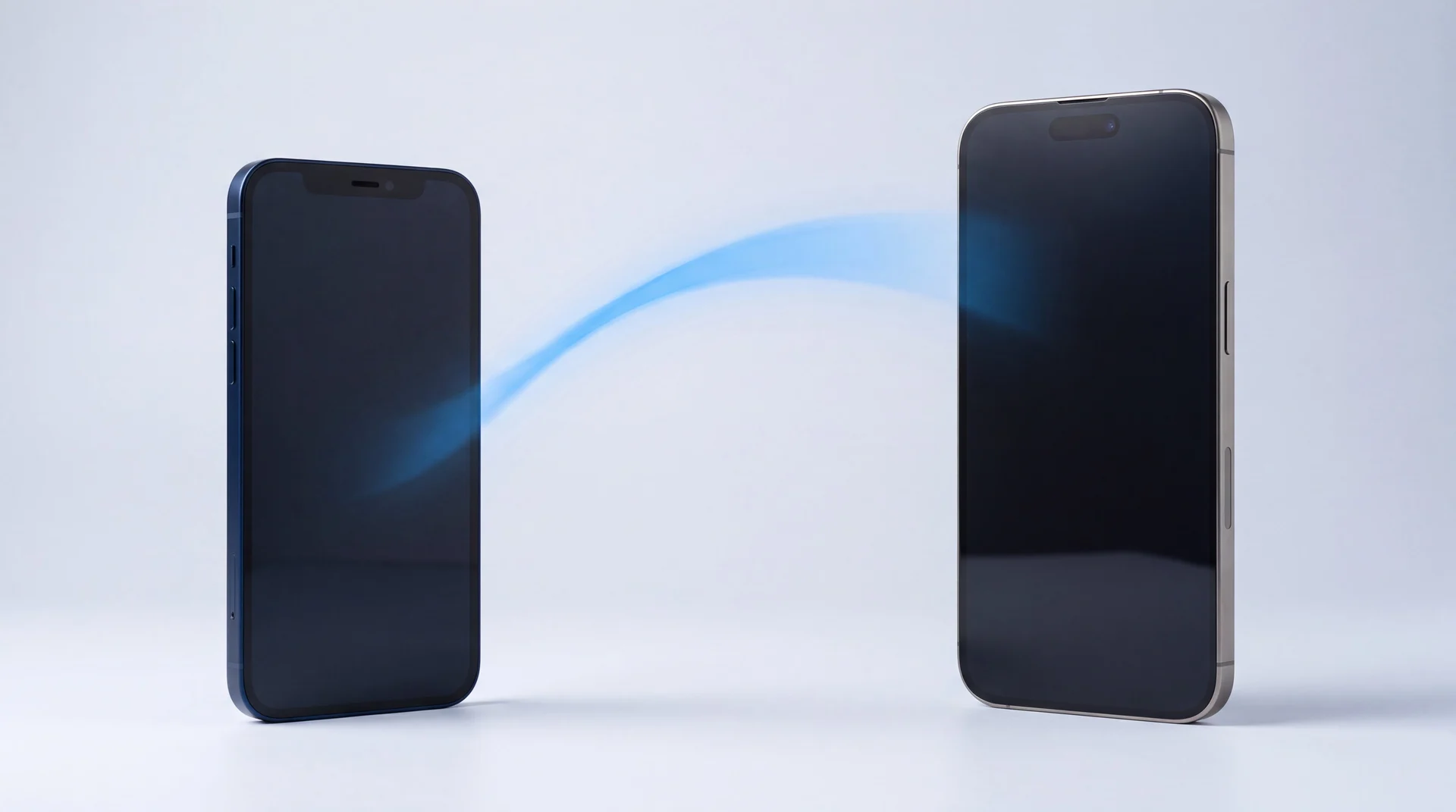
The short answer: plug both phones in, sit them next to each other with Wi-Fi and Bluetooth on, and turn the new one on. It offers to set itself up from your old phone, and everything moves straight across over Wi-Fi, with no cable, no computer and no iCloud backup needed. Keep both phones plugged in and together for about an hour and you are done. If the old phone is broken or already gone, the same setup screen can pull everything from your last iCloud backup instead. It genuinely is that easy now, and the parts that go wrong are almost never the transfer itself. Or buy the phone from us and we do the whole move for you, free.
Five minutes of prep saves the whole evening
None of this is difficult, but people start the transfer at the wrong moment and then get stuck halfway. Before you turn the new phone on, get these four things sorted.
-
Pick your moment. Apple warns that Quick Start occupies both phones while it runs, so neither one is much use to you. Do not start it on your way out the door.
-
Plug both in. Keep the old and new phone on power and next to each other until the transfer has finished. That is Apple guidance, not superstition, and it is the single most common reason a transfer stalls.
-
Get on decent Wi-Fi. The old phone needs Wi-Fi and Bluetooth on. A weak connection is what turns twenty minutes into two hours.
-
Know your Apple Account password. You will be asked for it, and possibly your old passcode. Digging it out mid-setup with your only phone tied up is nobody's idea of fun.
Do not unpair your Apple Watch first
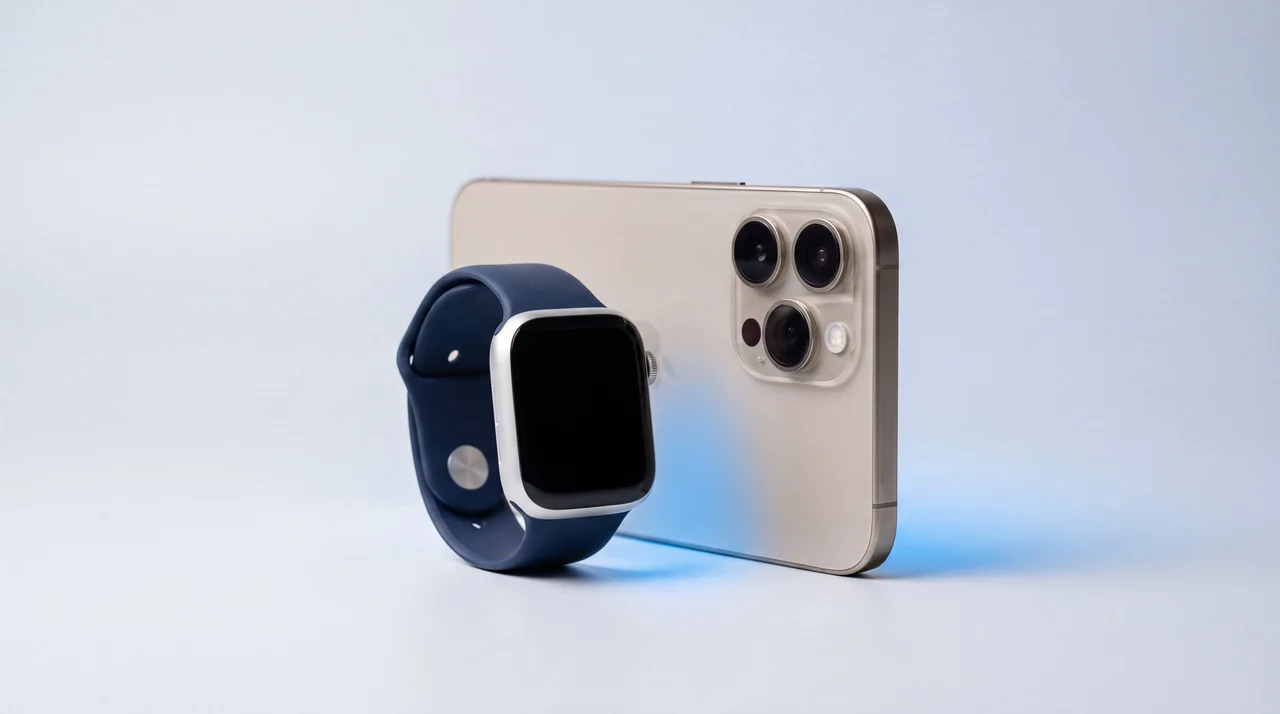
This is the one people get wrong, and they get it wrong by trying to be helpful. It feels tidy to unpair the Watch from the old phone before you start. Do not. Quick Start handles the Watch for you. Part way through setup the new iPhone simply asks whether you want to use your Apple Watch with it: keep the Watch on your wrist, unlock it if it asks, and tap Continue. That is the whole job.
Unpairing by hand is only a fallback for when that prompt never appears. Do it up front and you have made work for yourself, and you will be setting the Watch up again from scratch at the other end for no reason.
Three ways to move everything across
There is more than one way to transfer data from one iPhone to another, but they all end up in the same place. Which one suits you depends on whether you still have the old phone in your hand, and how good your Wi-Fi is. It is the same whether you are moving to the latest iPhone 17 or a refurbished model a few years older.
Wireless, phone to phone
The one most people want, and the one Quick Start offers you by default. Everything moves straight from the old phone to the new one over your Wi-Fi. No cable, no computer, and no need to make a backup first. Best if you have both phones in front of you and an hour spare.
From an iCloud backup
Quick Start can pull from your latest iCloud backup instead. Handy if the old phone is broken, lost or already gone, because the backup does the work rather than the phone. Your apps and photos download in the background, so the phone is usable quickly but keeps filling itself in for a while afterwards.
Over a cable
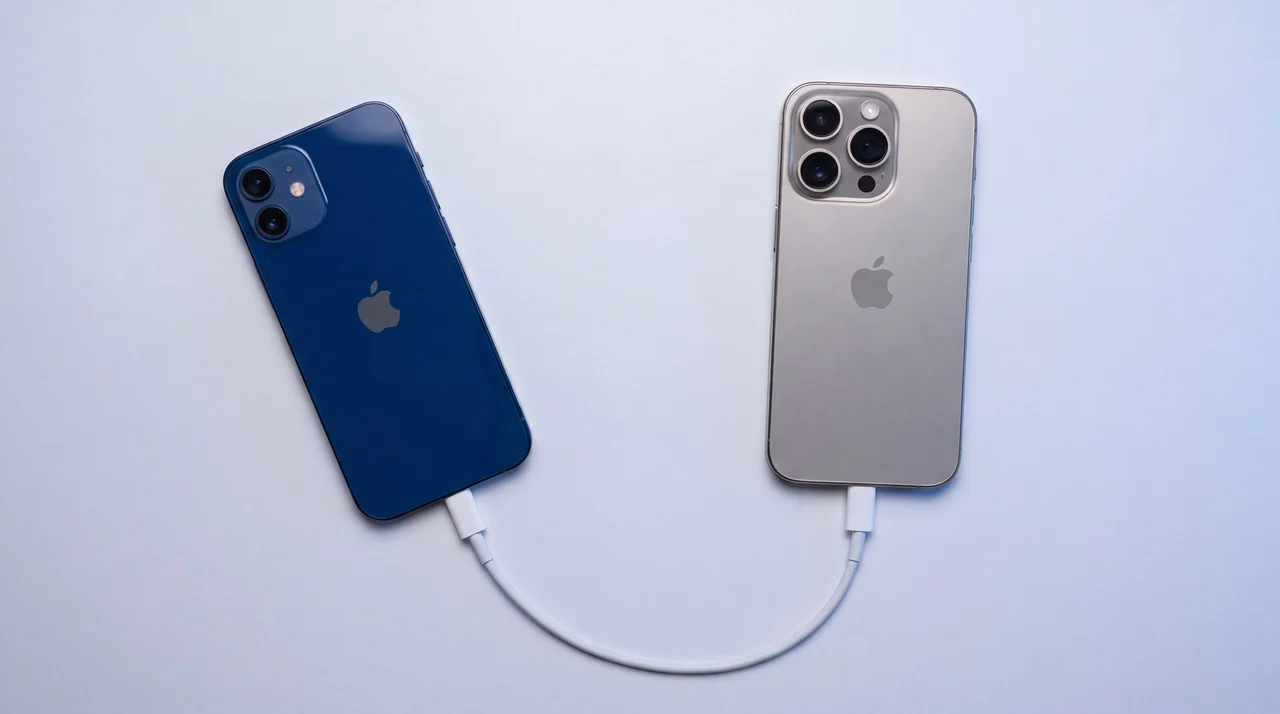
Wiring the two phones together is the steadier option on shaky Wi-Fi or with a very full phone. What you need depends on the ports, and one combination is more awkward than people expect. The table below has it.
Going over a cable: what you actually need
Apple's requirements. The iPhone 15 is where the port changed from Lightning to USB-C.
A USB-C to Lightning cable
The common one right now. The old phone is Lightning, the new one is USB-C.
A USB-C charge cable
The easy one. Both ends are USB-C, so the cable in the box does it.
A Lightning to USB 3 Camera Adapter and a Lightning to USB cable
The awkward one. Two Lightning phones will not talk over a plain cable, and the adapter has to be plugged into power as well.
Doing it yourself with Quick Start
- 1
Turn the new iPhone on and put it next to the old one. Do not tap through the setup screens on your own; wait a moment and the old phone pops up an offer to set the new one up.
- 2
Tap Continue on the old phone. A swirling pattern appears on the new one. Hold the old phone over it so its camera can read it, like scanning a code.
- 3
Enter your old passcode on the new phone, then set up Face ID when it asks.
- 4
Choose how to transfer: straight from the phone in your hand, or from your latest iCloud backup. Direct is the one to pick if you have both phones.
- 5
Leave them alone. Both plugged in, both together, until it says it has finished. Go and make a cup of tea.
- 6
Expect both phones to get warm. They are moving a lot of data and charging at the same time, so warm is normal and not a fault. Take any thick case off and do not leave them under a cushion or in direct sun while it runs.
- 7
Check the new phone properly before you touch the old one. Messages, photos, banking apps, the lot.
Worth knowing: a phone handed out by a workplace or a school can be locked out of Quick Start entirely, because Apple blocks it on devices managed through Apple Business Manager or Apple School Manager. If the prompt never appears on a work phone, that is usually why, and it is your IT department you need rather than us.
What comes across, and what needs a hand
iPhone to iPhone is the easy direction. Nearly everything lands on its own, but a couple of things want checking before your old phone goes anywhere.
Comes across on its own
- Photos and videos
- Messages and call history
- Contacts and calendars
- Your apps and their data
- WhatsApp chat history
- Settings and your home screen layout
- Your Apple Watch pairing
Check these yourself
-
Authenticator apps
The big one. Some do not bring their codes with them and need setting up again from scratch. Sort this out while you still have the old phone working, or you can lock yourself out of your own accounts.
-
Banking and payment apps
Expect to sign in again and re-approve the new device. Perfectly normal, and much easier with the old phone still to hand.
-
Anything not backed up
If an app kept everything locally and never synced, it has only ever existed on that one phone. Worth a thought before you wipe it.
What about your SIM?
One thing people worry about needlessly. Your SIM does not carry your stuff. Photos, messages, apps and accounts all move over Wi-Fi during the transfer, so whether you have a physical SIM or an eSIM makes no difference to any of that. A physical SIM holds your number and, at most, a handful of old contacts you once saved to it, nothing else. If those matter you can pull them in afterwards under Settings, then Apps, then Contacts, then Import SIM Contacts.
Your number moves too, just separately from your data. When you set the new phone up it offers to bring your number across, and if your network supports eSIM Quick Transfer it does the whole thing there and then without a phone call. Not every network is signed up to that yet, so now and again you will need a quick word with them or a new SIM in the post. Either way your photos and messages are never waiting on it. Buy the phone from us and we sort the SIM or eSIM as part of setting it up.
From the workbench: the mistake we see most
It is almost never the transfer that goes wrong. It is what people do straight afterwards. The new phone looks right, so the old one gets wiped and traded in that same evening, and then three days later an authenticator app turns out to be empty, or a photo album never finished downloading from iCloud, and the only copy of it was on a phone that is now factory fresh and long gone.
Keep the old phone for a week. Do not wipe it, do not sell it, do not hand it over. Just leave it in a drawer with a bit of charge until you are certain the new one has everything. A week of a drawer costs you nothing. Wiping too early can cost you photos you cannot get back.
The other thing worth knowing: restoring from a backup only happens during first setup. Set the new phone up as blank by mistake and the fix is to erase it and start over, which is fine but annoying. Apple's own instructions for that are on their Erase iPhone page, under Settings, General, Transfer or Reset iPhone, Erase All Content and Settings. Read it before you tap anything, because an erase is final. If you get in a muddle, stop before you erase anything and ask. That is a five-minute job for us and a horrible evening for you.
When you are finally ready to let the old one go, do it properly: our guide to wiping your phone before selling it walks through signing out so it is not still locked to you, which matters more than the erase itself. If it is worth keeping instead, a tired battery or a cracked screen is usually a cheap fix, and our iPhone repair prices are all up front. Or sell it to us once the new phone is proven.
Buy from us and we do all of this for you
There is no charge for it. It is part of our standard service, not an extra we sell you. Buy a phone from us and we move your photos, messages, apps and accounts over and set it up so it is ready to use when you get it. You can trust us with it.
And we do not disappear once it is in your hands. If anything plays up afterwards, an app that will not sign in, a setting that is not behaving, something you just cannot find, come back to us and we will sort it. Still no charge.
Refurbished iPhones in stock now
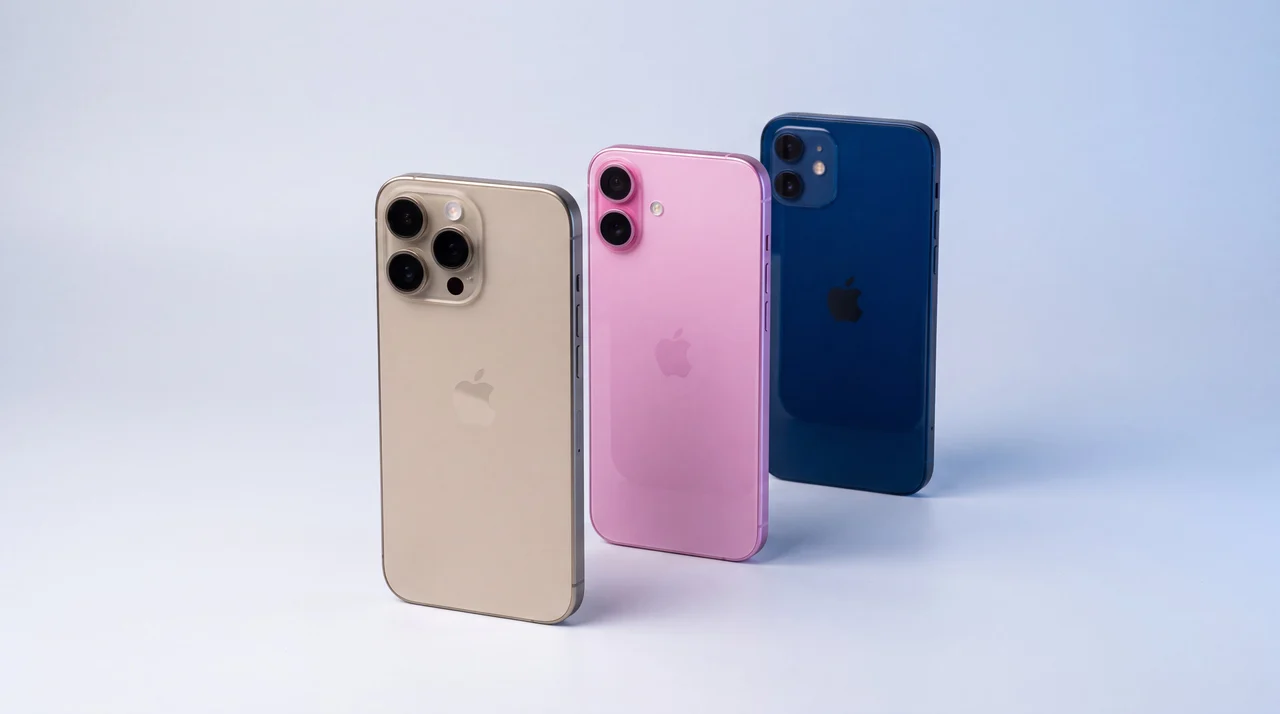
Real prices from our shop, updated automatically. Every one comes tested, with a 12-month warranty, and with your data moved across free.
The bottom line
Moving from one iPhone to another is the easiest job in this whole business. Put the two phones together, keep them plugged in, give it an hour, and Apple does the rest. If you take one thing from this, take the boring one: do not wipe the old phone the same day. Check your authenticator app, check your photos have actually landed rather than just started downloading, then leave the old phone in a drawer for a week before you do anything with it. That single habit is the difference between a smooth upgrade and a horrible phone call. And if you would rather not do any of it, buy your next iPhone from us and we will hand it over already set up and working, free, with help afterwards if you need it.
Moving to a new iPhone: your questions answered
How long does it take to transfer data from iPhone to iPhone?
Allow about an hour and you will usually be pleasantly surprised. It depends on how much is on the phone and how fast your Wi-Fi is, so a lightly used phone can be done in twenty minutes while a full one with years of photos takes considerably longer. Apple is clear that both phones are tied up for the duration, so start it when you do not need your phone rather than five minutes before you leave the house.
Why do both iPhones get hot while transferring?
Because they are working hard. The phones are moving a lot of data over Wi-Fi and charging at the same time, and both of those make heat, so getting noticeably warm during a transfer or a restore is completely normal and not a sign anything is wrong. Help them out: take any thick case off, leave them somewhere with a bit of air rather than under a cushion or a duvet, and keep them out of direct sun. If a phone gets so hot it warns you or slows the transfer right down, that is iOS protecting itself, so let it cool and carry on.
Do I need to unpair my Apple Watch before getting a new iPhone?
No, and this is the one that catches people out. Quick Start handles the Watch for you: during setup the new iPhone asks whether you want to use your Apple Watch with it, and you keep the Watch on your wrist and tap Continue. Unpairing first is only a fallback for when that prompt does not appear.
Do my WhatsApp chats move to the new iPhone?
Yes. Going iPhone to iPhone, your WhatsApp history comes across with everything else in the transfer or the iCloud backup. WhatsApp also has its own transfer tool if you would rather move the chats directly, under Settings then Chats then Transfer chats to iPhone. It is moving between an iPhone and an Android phone where WhatsApp needs handling separately.
Do my settings transfer to the new iPhone?
Yes. A device-to-device transfer or a full backup carries your settings with it: wallpaper, home screen layout, ringtones, alarms, Wi-Fi passwords, text size and most app preferences all arrive as you left them. The handful of things that need you afterwards are the security ones, like Apple Pay cards being re-added and banking apps asking you to sign in again, because those are tied to the old handset on purpose.
What does not transfer to a new iPhone?
Most things do, but a few need you. Some authenticator apps do not carry their codes across and have to be set up again, so check yours before the old phone goes anywhere. The odd app will ask you to sign in again. This is exactly why you keep the old phone until the new one is proven, rather than wiping it the same evening.
Do I need to put my SIM in the new iPhone before transferring data?
No. The transfer moves everything across over Wi-Fi, so your photos, messages and apps never touch the SIM. Your number is a separate job: when you set the new phone up it offers to bring your number over, and if your network supports eSIM Quick Transfer it does it there and then without you ringing anyone. If it does not, you might need a quick word with your network or a new SIM, but none of that holds up your actual data. A physical SIM only ever carries your number and maybe a few old contacts, never your photos.
Can I transfer data after I have already set up the new iPhone?
Restoring from a backup only happens during first setup, so if you have already set the new phone up you would need to erase it and start again to restore that way. It is not a disaster, but it is easier to do the transfer at setup. Bring it to us if you are not sure, we would rather sort it than have you erase something by mistake.
Will you move my data across if I buy a phone from you?
Yes, free, as part of our standard service. We move your photos, messages, apps and accounts to the new phone and set it up so it is ready to use, and you can trust us with it. If something plays up afterwards, an app that will not sign in or a setting that is not behaving, come back and we will sort it, no charge.
Let us set your next iPhone up for you
Professionally refurbished iPhones from £127, with a 12-month warranty, your data moved across free, and help afterwards if you need it.